Retro handhelds
Shells, screens, and the details that make a build personal.
Build photos, repair videos, gaming vlogs, and DIY notes for the gear you like to tinker with.
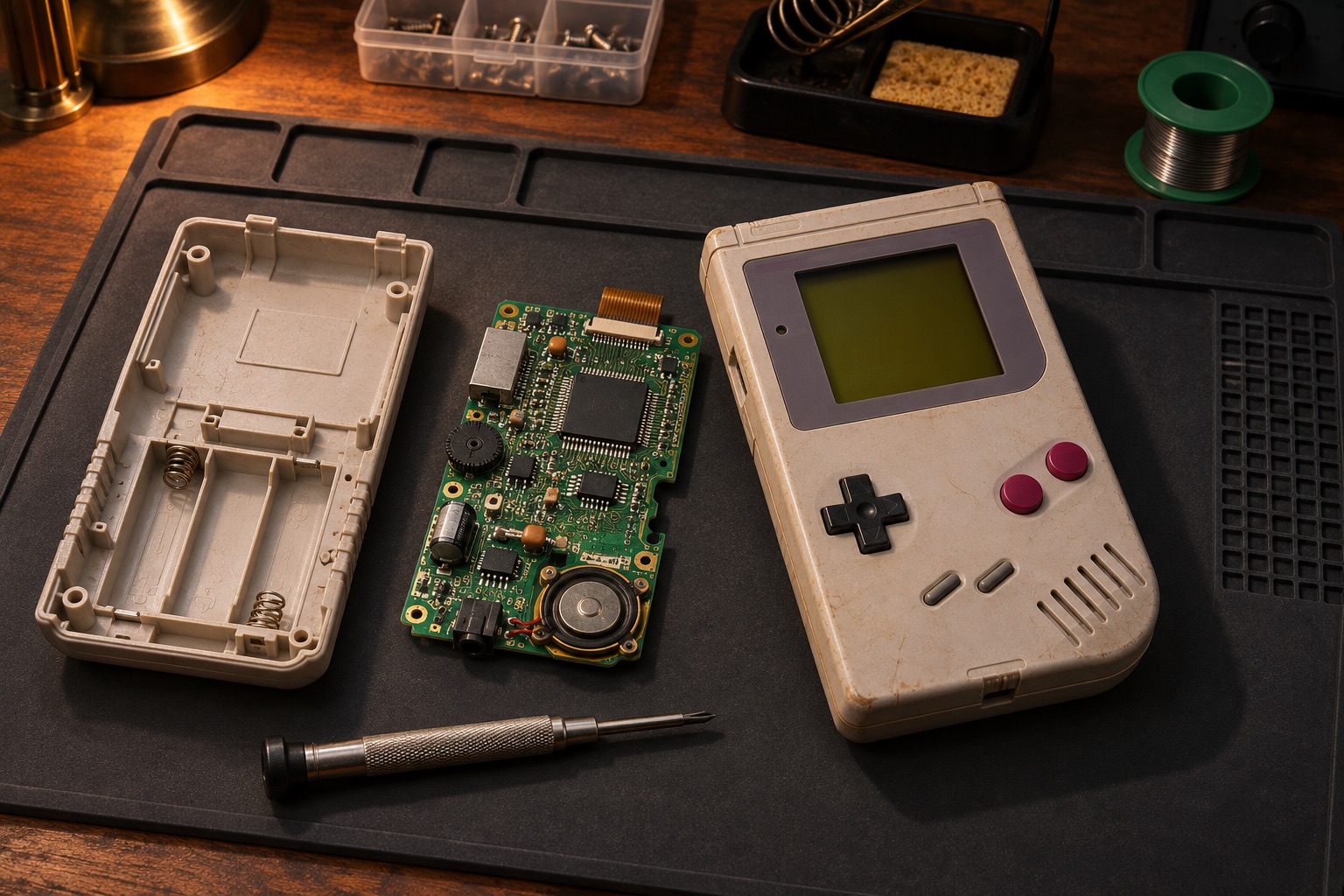
The sample photos are illustrative. Files you select stay on this device.
Shells, screens, and the details that make a build personal.
A closer look at the board and cooling assembly.
Component choices, airflow, and cable routing.
Add a clip with Preview your files to try the video layout.
Use this guide to put together a parts list for a screen, shell, USB‑C kit, or button lighting upgrade.
Start with the symptom on your desktop PC. Record when it happens and change one thing at a time.
Shut down and unplug the PC before touching internal parts. Stop testing if you smell burning or see a damaged power connector.
Manufacturer references No display · System stability · Fans and airflow
Use this guide to check your parts list before ordering and verify the build on its first boot.
Manufacturer references PC assembly and first boot · CPU and memory support · Power cable compatibility
Product concepts for paid charts, original schematics, and build planners.
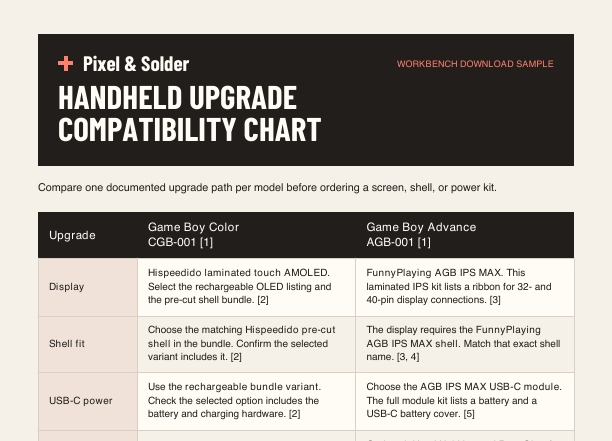
Compare Game Boy Color and Game Boy Advance screen kits, matching shells, USB‑C power, and optional button lighting before you order parts.
Free sample · Full chart demo $7.99
Troubleshooting flowcharts for symptoms such as no display, instability, or overheating.
Start with the symptom, record known-good components, and track the result at each step. Original, model-specific schematics could accompany verified guides.
A parts worksheet with compatibility checks and a place to record how the finished system was tested.
Capture the CPU and board pairing, memory, graphics-card clearance, power requirements, airflow, and the results of post-build checks.
Find the console’s exact model and board revision. Check the screen kit’s shell requirements, including whether it needs trimming or a particular shell.
Check handheld compatibilityCheck the monitor input, cable, and output port. Note whether the screen is blank from startup or goes dark only after the operating system loads.
Open the graphics card checklistConfirm that the motherboard supports your CPU and memory. Check the case clearance for the graphics card and cooler, and make sure the power supply has the required connectors.
Open the PC build checklistInclude the manufacturer and full model, when the issue started, what still works, and any lights, sounds, or error messages. List the checks you’ve tried. If there’s visible damage, have clear exterior photos ready for follow-up.
Request a repair quote